
DataImpulse proxy setup
Use your DataImpulse Residential or Mobile plan to test your own site by US state, city or ZIP: login, targeting parameters, sticky sessions and fixes.
Last updated
To test your own site through a DataImpulse plan, save the plan's proxy login in Proxy QA Browser once, pick a US state, city or ZIP code on the Launch page, and the app builds the DataImpulse username parameters, checks the exit IP's location and opens the browser. DataImpulse is the provider the app is live-tested with. Proxy QA Browser does not sell proxies and is not affiliated with or endorsed by DataImpulse.
What you need
- A DataImpulse Residential or Mobile plan of your own. They are separate plans with separate logins on the same gateway.
- The plan's proxy login and password from your DataImpulse dashboard. Enter the bare login; the app adds every targeting parameter itself.
- Proxy QA Browser for Windows, Linux or macOS.
Set up DataImpulse in the app
- Open Manage keys on the Launch page (or Settings → Advanced → Proxy keys → Manage keys…) and choose the provider DataImpulse.
- Pick the product tab, Residential or Mobile. Proxy host and Port are pre-filled with the gateway
gw.dataimpulse.com:823. - Enter the login and password, click Test connection (one request through the proxy, nothing saved), then Save encrypted.
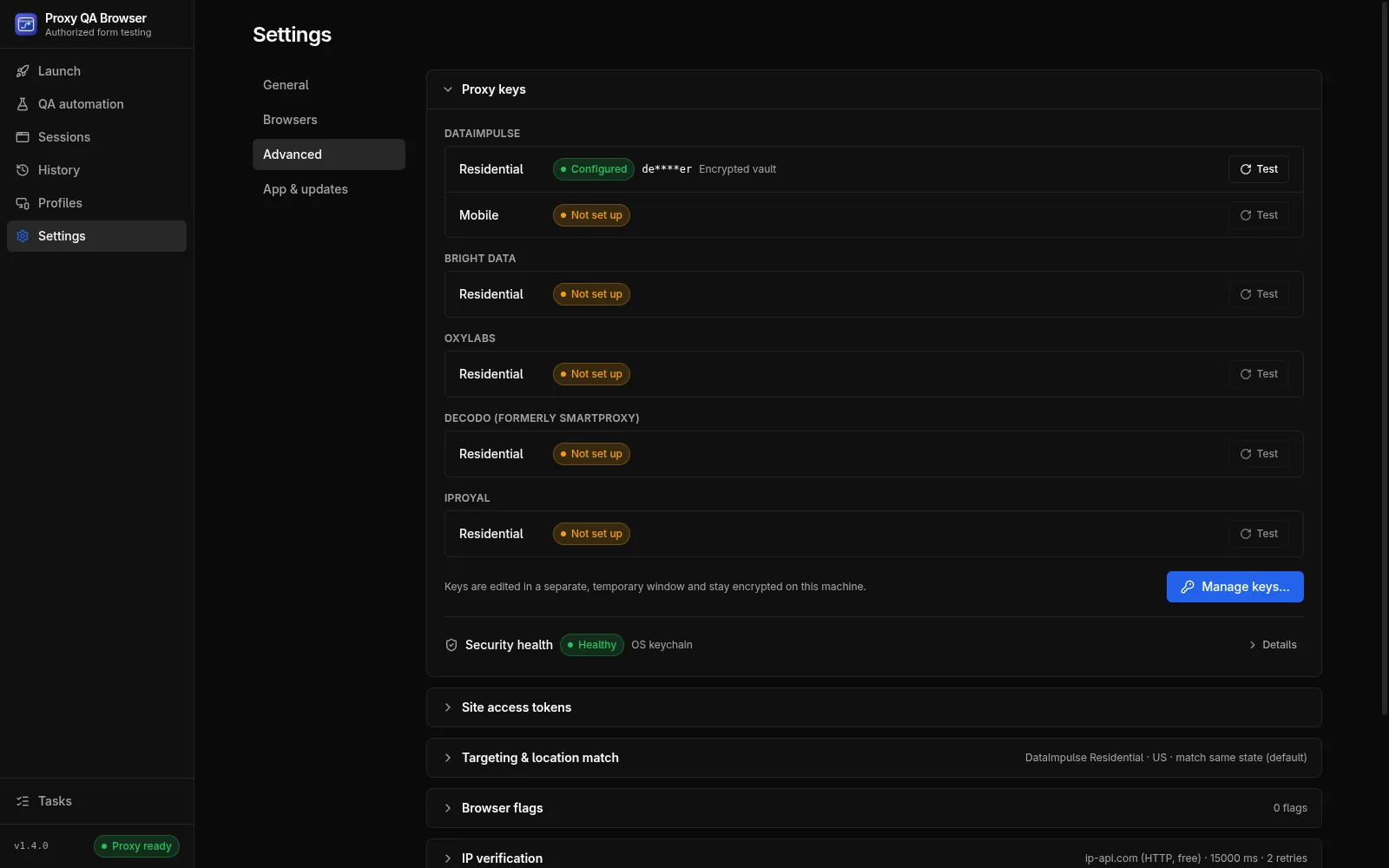
The login is stored in the encrypted vault and never shown in previews, logs or run history. A Residential login is never used for the Mobile pool. The same steps are part of the first-run wizard.
Target a US state, city or ZIP code
On the Launch page, choose DataImpulse as the Proxy provider, a pool, and an Exit location. The app appends the parameters after a double underscore, key.value pairs separated by ;:
| Target | Parameters added to the login |
|---|---|
| Country | __cr.us |
| State | __cr.us;state.newjersey |
| City | __cr.us;state.newjersey;city.newark |
| ZIP code | __cr.us;state.newjersey;city.newark;zip.07102 |
Place names are lower case with spaces removed (newjersey, stlouis), as in DataImpulse's published state list. The Will connect as line on the Launch page shows the exact parameter string before you launch. DataImpulse bills state, city and ZIP targeting at 2× the country rate, and the launcher warns about it. The full syntax, including logins that already carry parameters and the sticky-session template, is in DataImpulse username syntax.
Sticky and rotating sessions
Sticky mode (the default) adds sessid.<id> and keeps one exit IP for about 30 minutes, or for Session TTL minutes (1–1440), sent as sessttl.<minutes>. Use it for multi-step forms. Turn Sticky session off for rotating mode, where every request may use a different exit IP.
login__cr.us;state.newjersey;sessid.ql-20261007-7f3a;sessttl.60Before the window opens, the app checks the exit IP and can re-roll the sticky session until its location meets your match policy.
Run DataImpulse in CI
The CI runner reads the login from environment variables set from your secret store: QA_PROVIDER=dataimpulse, QA_PROVIDER_PRODUCT=residential or mobile, QA_PROVIDER_USERNAME and QA_PROVIDER_PASSWORD. The older DATAIMPULSE_PROXY_* variables still work as an alias.
DataImpulse proxy not working?
| Symptom | What to do |
|---|---|
PROXY_AUTH_FAILED / HTTP 407 |
Re-enter the login and password in Manage keys, click Test connection, and check that the plan is active and allows the targeting you chose |
| Pool shows Not set up | Save a login for that product. DataImpulse Mobile needs its own Mobile-plan login |
PROXY_DEAD with HTTP 503 |
The gateway has no free exit IP for this sticky session and location, typical for thin ZIP codes. Wait about 30 minutes, use rotating mode, or target the city or state. See the ZIP targeting caveat |
| Location badge Mismatch | The exit IP geolocates elsewhere, common with carrier IPs. Use more Attempts or a broader target |
More error codes are in Troubleshooting.
Next steps
Plan the tests themselves with location testing and geo-blocking testing, then record a scenario to repeat them across locations, devices and browsers.