Test your website from different locations: country, US state, city or ZIP code.
Proxy QA Browser opens a browser through a proxy exit IP in the country, US state, city or ZIP code you choose, and checks where that IP is reported to be before the window opens. You see what your own site serves to that exit IP, and every launch is recorded with its evidence.
How do I test my website from another state?
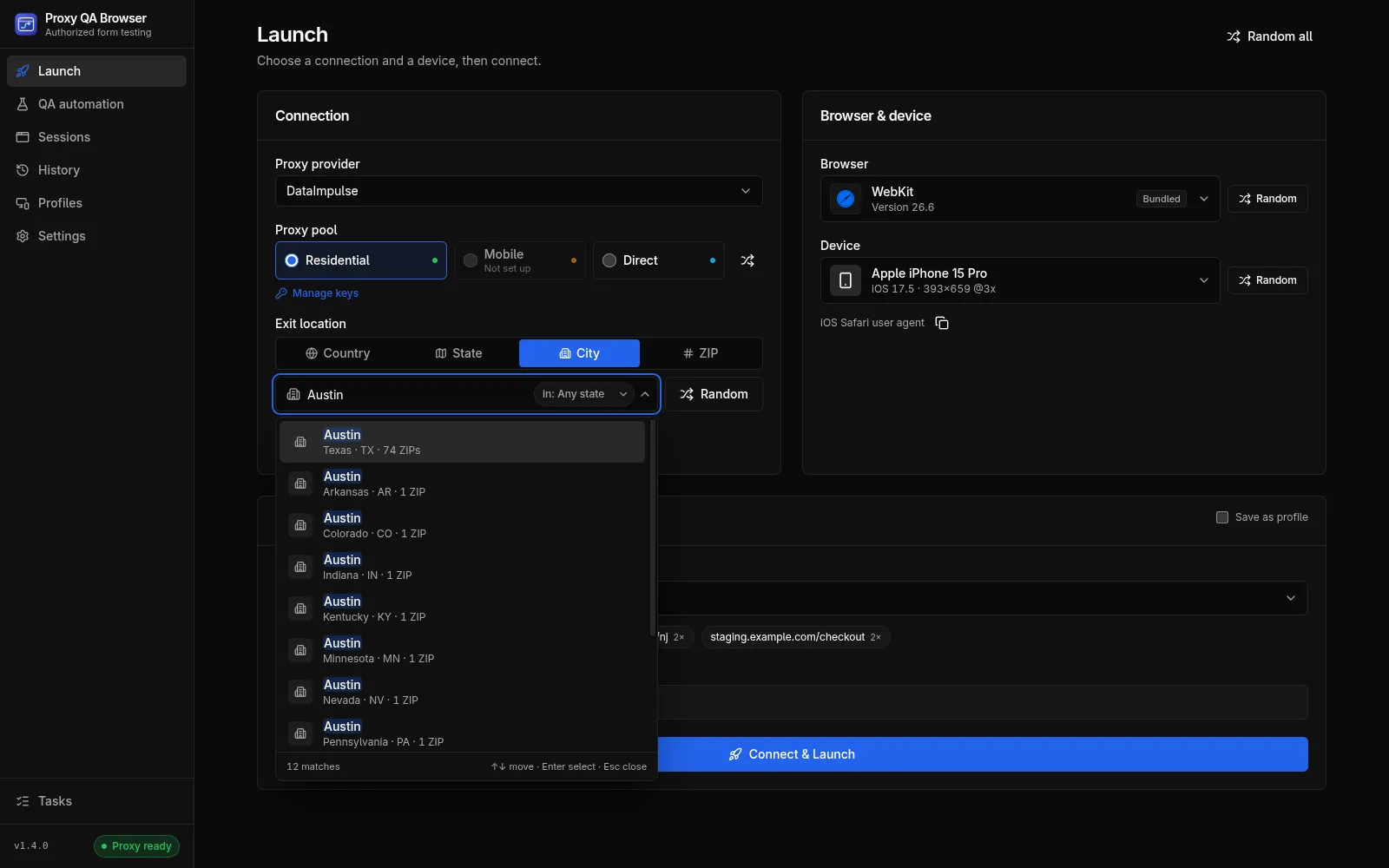
On the Launch page, Exit location connects by country, state, city or ZIP code. For other countries, Country targeting accepts any two-letter code. State, city and ZIP searches run on your computer over a bundled US location dataset from GeoNames, and your queries are never sent anywhere.
- 51 states including DC, 29,540 cities and 40,977 ZIP codes
- Case- and accent-insensitive search: "newark nj" narrows a city or ZIP search to one state
- Recent picks, popular states and cities, and an Any state filter
- Only the modes your provider supports are offered; IPRoyal has no ZIP mode
The exit IP is checked before the window opens
The app looks up the exit IP through the same proxy login the browser will use and compares the reported country, region, city and postal code with your target. The verdict appears on the run next to what you requested. Read how exit-IP verification works.
- Match: every requested level agrees, including the exact ZIP for a ZIP target
- Partial: right state, but another city or another postal code
- Mismatch: another state or country
- Unverified: no target, or the IP service did not report enough to compare
Sticky sessions retry until the location fits
A sticky session keeps one exit IP, so a bad draw would last the whole session. With a target set, the app retries with a new sticky session while the result falls short of your Location match policy, up to the number of attempts you set (1 to 8, default 3). If none fits the policy, it uses the best result and the run shows a warning.
- Location match Off, Same state (the default) or Exact (city or ZIP)
- Rotating sessions are not retried
Evidence for every launch
Every launch opens a run under History. It records the exit IP with country, state, city and ZIP, requested versus verified location, HTTP status, the form and final URLs and the last screenshot.
- A network tab with every request, its method, status and timing while the network inspector is on (the default)
- Lead and certificate IDs filled in when they appear in a JSON response
- Save the setup as a profile to launch the same location, browser and device again
Combine location with device, locale and timezone
Each session runs in its own isolated browser context. Pick one of the phone, tablet and desktop device presets for its viewport, scale factor and touch support, and set the locale on the profile. For a US state, city or ZIP target, the timezone is filled from the target state until you change it, so you can check date- and time-dependent content for that state.
Repeat it across many locations
A recorded scenario can run as a QA automation matrix across browsers, devices and locations, with the exit IP checked before each browser opens. Location tests on a direct connection are refused before the run starts. Run the matrix against your own staging site with synthetic test data.
What you need
Location targeting needs your own plan with a supported provider: DataImpulse (live-tested) or the community-verified Bright Data, Oxylabs, Decodo and IPRoyal. Direct launches use this computer's own connection and cannot target a location. IP geolocation is an estimate reported by a third-party service. Use the app only on sites you own or are contracted to test.
Checking whether your site blocks or redirects some regions? See how to test your own geo-blocking and redirect rules.
How it works.
Every step and setting is covered in the documentation linked below.
Read the docsAdd your proxy keys
Enter the login for your provider's product in the encrypted vault from the Manage keys window. Keys stay on your computer.
Choose the exit location
On the Launch page, pick the proxy pool, switch Exit location to State, City or ZIP and search for the place you want to test.
Pick a browser and device
Choose bundled Chromium, Firefox or WebKit or an installed browser, and one of 226 device presets. Firefox cannot emulate phones or tablets.
Connect and launch
Click Connect & Launch. The app checks the exit IP and shows requested versus reported location, then opens the browser at your start URL.
Review the run
Check the result, screenshot and network requests under History, and save the setup as a profile to repeat it later.
Common questions.
Can I test from locations outside the United States?
Yes, by country: Country targeting accepts any two-letter country code. State, city and ZIP search uses the bundled US dataset, and the community-verified providers accept state and ZIP targets only in the United States. Choosing a location
Is location testing free?
The app is free and open source. Location targeting needs your own paid plan with a supported proxy provider, billed by that provider, and some providers charge more for state, city or ZIP targeting. Direct launches and QA automation runs without location targets work without a plan, on this computer's own IP. The app does not sell or include proxies. Pools, logins and billing
Does this change the IP address my site sees, or only browser settings?
Your site's IP-based geo rules see the proxy exit IP, which the app looks up before the window opens. Your site's own geo-IP database may place that IP differently from the app's lookup service. Locale and timezone are profile settings, so date- and time-dependent content can be checked for the target. Emulation is for testing your own pages; it is not designed to disguise the browser. How emulation is applied
Why might the reported city differ from my target?
Geolocation is a third-party estimate, and some ZIP codes have few exit IPs. ZIP targeting caveat
Which service checks the exit IP?
ip-api by default, or ipinfo or ipwhois, chosen under Settings, Advanced, IP verification. If the chosen service fails after its retries, the app tries one other service once. The app reports what the service says. IP-check services
Can I check many locations in one run?
Yes. In QA automation, a matrix combines up to 10 browser engines, 20 devices, 20 locations and your dataset rows, capped at 100 cases per matrix by default (configurable up to 500). Each location case checks the exit IP first and requires an exact target match. Run it against your own staging site, with synthetic data your backend tags as test leads. Matrices, retries and limits
Try it on your own site.
Free and open source, for Windows, Linux and macOS. Use it on sites you own or are contracted to test.