Launching browsers
Launch Chrome, Edge, Brave or a bundled engine for QA through a built-in proxy provider or directly, in a fresh profile, with the exit IP checked first.
Last updated
The Launch page opens an isolated browser session in one click after checking its exit IP, and every launch is recorded with its exit IP, outcome and evidence.
Manual launches go through a built-in provider (DataImpulse, or the community-verified Bright Data, Oxylabs, Decodo and IPRoyal) or a direct connection. Custom HTTP/HTTPS or unauthenticated SOCKS5 gateways work in QA automation only. There are no command-line flags to set: the app builds the proxy login, checks the exit IP and opens the browser in a fresh temporary profile, adding the proxy username and password itself. Proxy QA Browser is independent and not affiliated with or endorsed by any proxy provider or browser vendor.
The Launch page
Launch is the start page. It is one form with one primary button, Connect & Launch, and it remembers what you used last. Random all in the header picks a configured pool (Direct when none is configured), a current device, a compatible installed browser and, unless the pool is Direct, a random location.
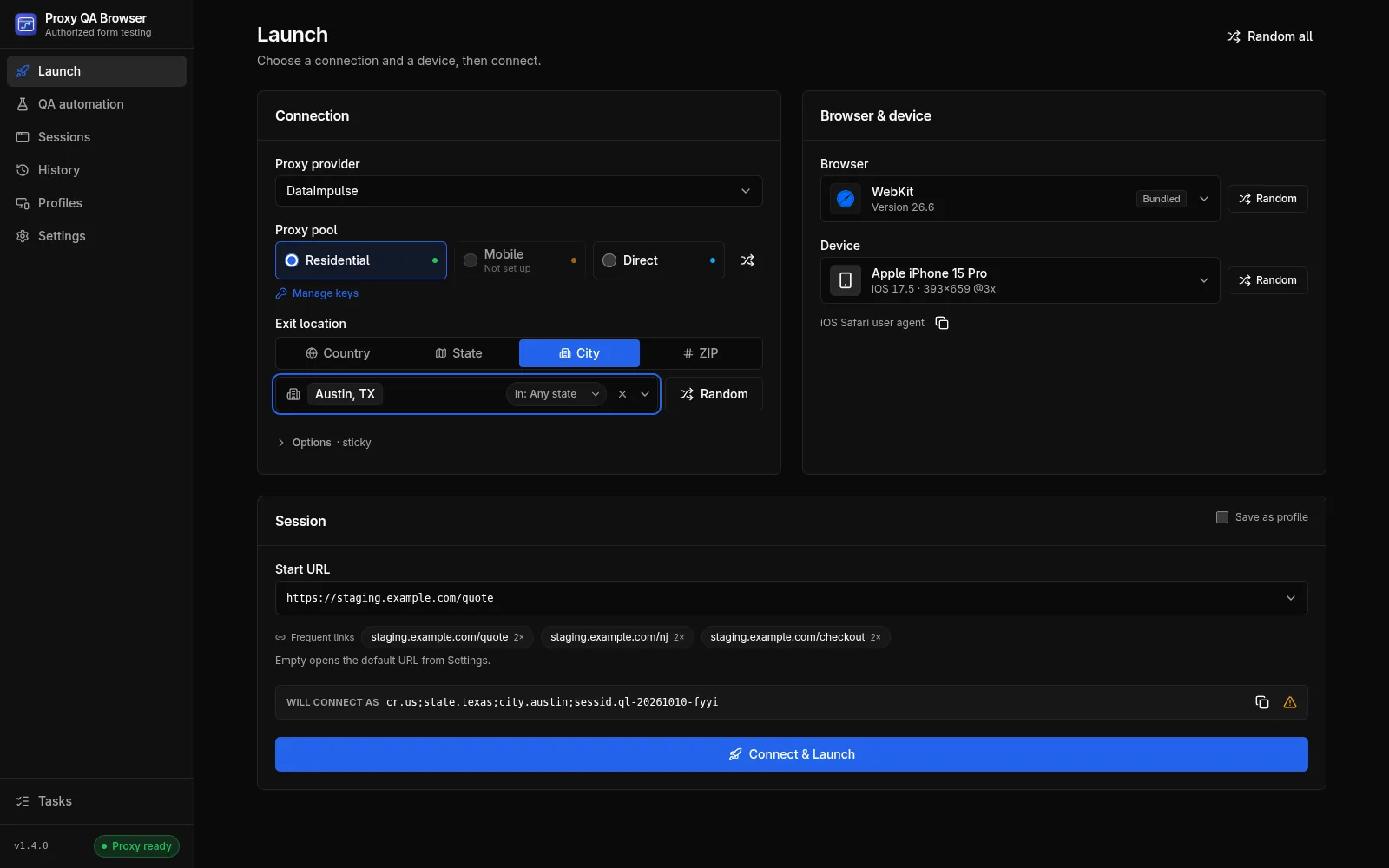
Connection
- Proxy provider: the providers that have keys (all of them while none has).
- Proxy pool: the provider's products (for DataImpulse, Residential and Mobile) and Direct, which uses no proxy and this computer's own IP. A pool without keys shows Not set up and cannot be selected; the Manage keys link under the row opens the Manage keys window. The shuffle icon (Random pool) picks one of the configured pools.
- Exit location: connect by Country, State, City or ZIP (disabled for Direct). See Locations and devices, and the guide to testing your site from a chosen location.
- Options · sticky / rotating (collapsed): Sticky session (on by default; keeps the same exit IP for the session TTL) and Session TTL (min) (1–1440; empty uses the provider default). See Sticky and rotating sessions.
Browser and device
- Browser: grouped Bundled (Chromium, Firefox, WebKit) and Installed (Google Chrome, Microsoft Edge, Brave, Opera, Opera GX, Vivaldi, Chromium (system install)). Each row shows its status and version. A missing browser has an inline Install (one click) or Get (opens the vendor's download page) button. Browsers that cannot emulate the chosen device are greyed out with the reason, for example "Firefox can't emulate mobile devices".
- Device: the device picker. Under it, one line names the user agent the device sends, with a Copy user agent button.
Session
- Start URL: the page to open. Empty uses the default URL from Settings. Only
http://andhttps://URLs are accepted. Click the field to see recent and saved URLs, or type to search older ones. - Frequent links: one-click shortcuts ranked by use in the latest 1,000 launches, plus saved profile links and the default URL.
- Save as profile: off by default. Off, the launch creates a hidden quick launch profile. On, a name field appears and the profile is kept on the Profiles page. An empty name is generated as "Pool · target · device", for example "Residential · New Jersey · Apple iPhone 15".
- Will connect as: the exact parameter string that will be sent to the provider, for example
cr.us;state.newjersey;sessid.ql-20261007-7f3a;sessttl.60, with a copy button. It never contains your login or password. An icon at the end shows warnings (such as DataImpulse's 2× billing for state, city and ZIP targeting) and what the location policy will do.
Connect & Launch creates the profile, verifies the exit IP, opens the browser and takes you to the run page. It is disabled while the pool has no keys or the browser is not installed or is being installed.
One session at a time
By default only one browser can be open. If one is already open, Connect & Launch shows A session is already open with Go to session, Close it and launch and Dismiss. To run several browsers side by side, turn off Settings → General → One session at a time. Independently of this setting, one profile can only have one open session.
The run page
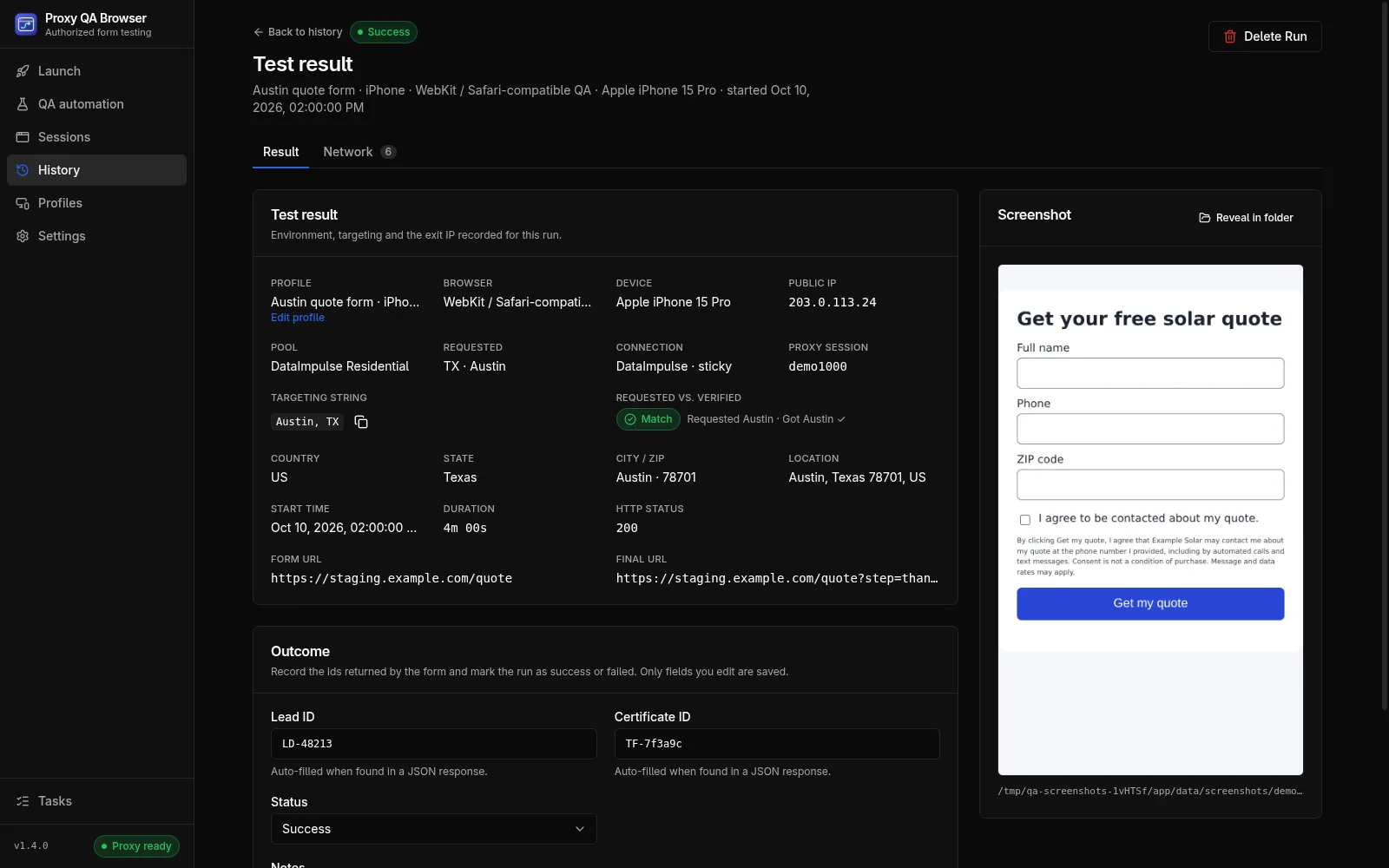
Every launch opens its run under History, titled Test result.
Live session
While the browser session exists, the page shows the steps Validating → Verifying proxy (or Checking exit IP for Direct) → Launching → Open, a status line and the current URL, and the proxy verdict card, shown before the browser window opens:
| Card | Meaning |
|---|---|
| PROXY READY | The exit IP with country, state or region, city and ZIP, ISP and ASN, latency, the session (sticky ID or rotating), and Requested vs. verified with a Match, Partial, Mismatch or Unverified badge |
| DIRECT CONNECTION | This computer's own exit IP (no proxy) |
| PROXY FAILED / EXIT IP CHECK FAILED | The error in plain words, its code (for example PROXY_AUTH_FAILED) and Retry launch |
Errors after the proxy step (browser could not start, page timed out, HTTP error) appear as Launch failed followed by the step that failed with Retry launch. Error codes are explained in Troubleshooting.
Header buttons while the session is live: Bring to Front, Take Screenshot and Close Browser. After the session ends: Delete Run (the screenshot file stays on disk). For a quick-launch profile, Save as profile keeps it on the Profiles page.
Result tab
- Test result: profile, browser, device, public IP, pool, requested location, connection (the provider with sticky or rotating, for example DataImpulse · sticky, or Direct (no proxy)), proxy session, targeting string, requested vs. verified, country, state, city / ZIP, start time, duration, HTTP status, form URL and final URL.
- Outcome: Lead ID and Certificate ID (filled automatically when found in a JSON response; your edits win), Status (Success / Failed) and Notes (up to 4,000 characters). Click Save Changes to keep edits.
- Screenshot: the last screenshot of the run, with Reveal in folder.
Network tab
With the network inspector on (the default), this tab lists every request the page makes, with method, URL, status and timing. Filter by text or with the quick filters lead, submit, certificate, cert, form and api. IDs found in JSON responses (leadId, lead_id, certificateId, certificate_id) appear as badges, and the first lead and certificate IDs are filled into the outcome. Response bodies are inspected in memory and never stored.
How a session behaves
- Isolation: every session is a separate browser process with its own context: separate cookies, storage, cache and proxy login. Installed browsers use a fresh temporary profile, so your own bookmarks, cookies and extensions are never touched.
- Proxy password: never shown again after saving and never written to logs or the database. With WebKit it never reaches the browser process, because a local relay adds the login; Chromium-family browsers and Firefox receive it to authenticate to the proxy directly.
- Timeouts: browser start-up must finish within 45 seconds (
BROWSER_LAUNCH_FAILEDotherwise). Opening the start URL may take up to the navigation timeout (60 seconds by default). - HTTP errors: a status of 400 or higher marks the run failed (
SITE_HTTP_ERROR) but keeps the window open as evidence. - Ending: closing the last tab or window ends the session within about 5 seconds. A run ends as success when the page loaded, aborted when cancelled during launch, and failed otherwise; you can change success or failed afterwards in Outcome.
- Crash clean-up: if the app crashed or was killed, the next start closes the Chromium-family browsers it left open and marks their runs aborted. Processes the app did not start are never touched.
- Screenshots are PNGs named
<runId>-<timestamp>.pngin the screenshot folder.
Sessions
The Sessions page lists open browsers and their verified exit IPs. Each live session shows pool, requested and verified location, status and start time, with actions to open the run, Bring to front, take a screenshot or Terminate session. Select rows to Terminate selected, or use Terminate all. Recently finished lists the latest finished runs.
History
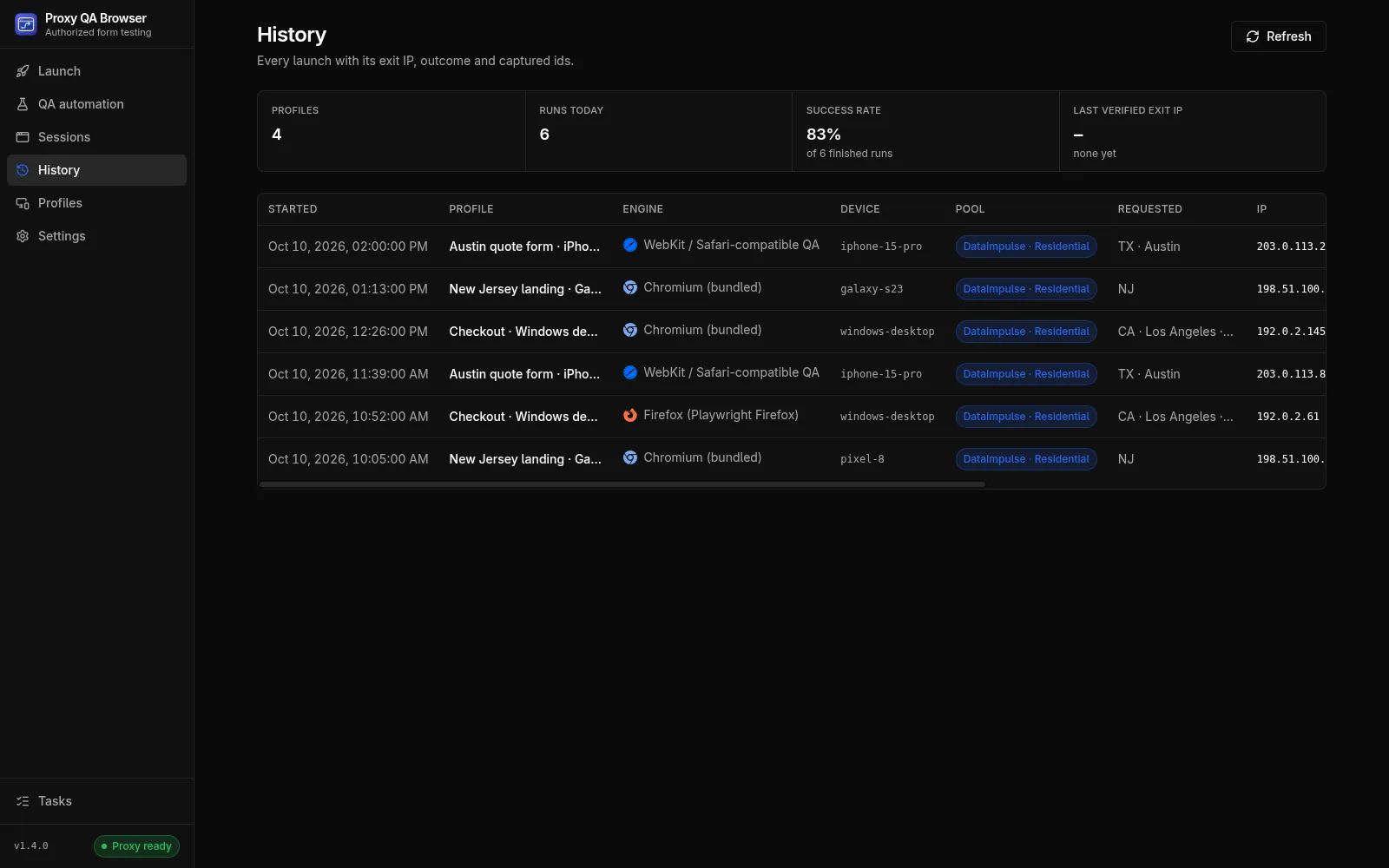
History shows an overview (saved profiles, runs today, success rate of finished runs, last verified exit IP) and the latest 200 runs. Click a row to open its run page.
Profiles
Browser Profiles are saved, repeatable setups. Quick launches stay hidden unless saved.
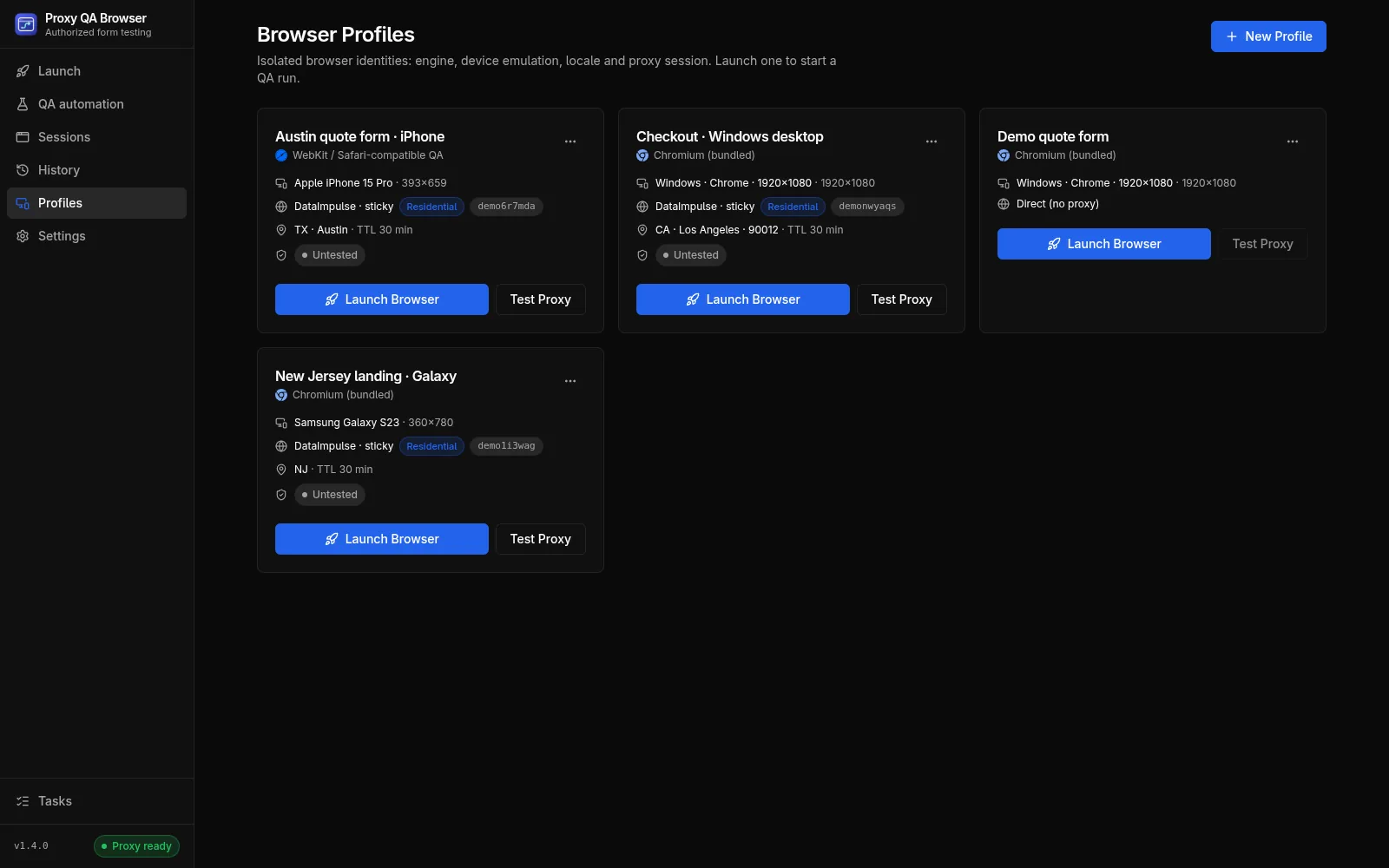
Each profile card shows browser, device, proxy mode, pool, sticky session ID, requested location and the last proxy status, with Launch Browser and Test Proxy (one IP check through the profile's sticky session). The … menu has Edit, Duplicate (adds " (copy)" and a new sticky ID) and Delete (past runs are kept).
The profile editor has four sections:
| Section | Fields |
|---|---|
| Identity | Profile name, Device preset, Browser engine |
| Device emulation | Viewport width / height (320–7680 × 320–4320 px), User agent (empty uses the preset's), Locale (BCP 47, for example en-US), Timezone (IANA, for example America/Chicago; filled from the target state until you edit it) |
| Proxy | Proxy mode (Direct, sticky or rotating), Proxy provider, Proxy pool, Sticky session ID (required in sticky mode; letters, digits, - and _, up to 64), Target location (only the modes the provider supports) and Sticky TTL (minutes) (1–1440) |
| Form & notes | Form URL override (empty uses the default start URL) and Notes |
A profile that names a provider this version does not include is never switched to another provider: launching it fails with INVALID_INPUT naming the provider.