
Consent, accessibility and performance checks
Check consent disclosures and checkboxes, lead-certificate scripts (TrustedForm, Jornaya LeadiD), axe-core accessibility rules and performance budgets.
Last updated
Checks are assertion steps that inspect the page your scenario has reached and record evidence: consent disclosures and checkboxes, lead-certificate scripts, axe-core accessibility rules and performance budgets. For the end-to-end workflow, see TCPA consent testing; for phones and tablets, see small-screen disclosure checks.
How checks work
Checks only read what your own page renders and loads; scrolling the checked element into view is the one interaction. They never contact a third-party service, never change the browser's identity and never try to get past bot protection. If protection blocks your QA runs, allowlist them with a site access token.
| Step (editor label) | What it asserts | Main fields (default) |
|---|---|---|
checkConsent (Check consent disclosure) |
The consent or TCPA disclosure is present, worded as approved, visibly rendered, large enough, legible and near the submit button | blockSelector or blockText; approvedText (optional, {{variables}} allowed); wordingMatch (exact); minFontPx (10); minContrastRatio (4.5); nearSelector (optional); maxDistancePx (200) |
checkConsentCheckbox (Check consent checkbox) |
The consent checkbox is not pre-checked and has a label | checkboxSelector |
checkScriptLoaded (Check script loaded) |
A lead-certificate script loaded and did its work | preset: trustedform, jornaya or custom; scriptUrl, inputSelector, globalName (optional; scriptUrl required for custom) |
checkAccessibility (Check accessibility (axe)) |
No axe-core violations at or above an impact level | scopeSelector (whole page); tags (wcag2a, wcag2aa); failOn (serious); maxNodes (5) |
checkPerformance (Check performance budget) |
Page metrics are within budget; all metrics are always recorded | budgets (lcpMs, cls, inpMs, tbtMs, ttfbMs, domContentLoadedMs, loadMs, transferBytes; none by default); settleMs (1000) |
Common behaviour:
- Continue on failure. Every check accepts
continueOnFailure(Continue if this check fails in the editor). A failed check then records its evidence, marks the case failed and lets the remaining steps run, so one run reports every problem on the page. Without it a failed check stops the case like any other assertion. - WARN. A check can end as a warning: recorded in results and reports but not failing, for example when contrast is not measurable.
- No healing. Like other assertions, checks never use self-healing fallbacks.
- Variables. Selectors,
blockText,approvedText,scriptUrlandinputSelectoraccept{{variables}}.
Scenarios, backups and CI manifests saved before checks existed load unchanged.
Consent disclosure (checkConsent)
The step runs these checks in order:
- Present. The block is found by CSS selector, or by a distinctive phrase (
blockText, the smallest element containing it), within the step timeout. When several elements match, the first is checked and a warning says so. - Wording. The block's rendered text is compared with
approvedTextafter normalizing whitespace (including non-breaking and zero-width spaces) and Unicode composition. Punctuation, quotes and case must match.exactrequires equal text;containsallows other text around it. A mismatch fails with a word-level diff, for example… may [-call and text-] {+contact+} me …, where[-…-]is approved but missing and{+…+}appears only on the page. - Visible. The block is scrolled into view, then fails when it or an ancestor is
display:none, it hasvisibility:hidden, its combined opacity is below 0.1, it has no size, it is clipped away, it is still outside the viewport, or another element covers its centre (a modal, sticky footer or cookie banner). The covering element is named in the evidence. - Font size. The smallest rendered font size of the block's visible text, in CSS pixels and including transforms, must be at least
minFontPx. - Contrast. For each visible text run, the text colour is composited over its ancestors' backgrounds and the WCAG 2 contrast ratio is computed. The lowest ratio must be at least
minContrastRatio. With a background image or gradient behind the text, or a colour outside sRGB, the ratio is not measurable and the step records a warning; verify those by hand. There is no large-text exception; set 3 for disclosures that are WCAG large text. - Near. With
nearSelector, the gap between the two boxes must be at mostmaxDistancePx.
The matrix headline names what failed, for example consent font 9px, consent contrast 2.31:1, consent hidden (display:none) or consent wording differs.
Limitations: overlap is tested at the centre only; a background painted by a non-ancestor element is not seen by the contrast measurement; frames and shadow DOM are not searched.
Consent checkbox (checkConsentCheckbox)
Place it before any step that ticks the box. It fails when the box is checked (checked, or aria-checked="true" for a role="checkbox" element), when the element is not a checkbox, or when it has no label (a <label>, aria-label, aria-labelledby or title). A box that the HTML marks checked but a script unchecked is a warning.
Lead-certificate scripts (checkScriptLoaded)
Use this step to check that the TrustedForm or Jornaya LeadiD script loaded on your form, or a custom lead-certificate script. It waits up to the step timeout for the page's own script to finish:
| Preset | Passes when |
|---|---|
| TrustedForm | A script from api.trustedform.com (or a subdomain) loaded and a hidden input whose name contains TrustedFormCertUrl holds a https://cert.trustedform.com/… certificate URL |
| Jornaya LeadiD | A script from create.lidstatic.com loaded and the hidden input #leadid_token is populated |
| Custom | A script URL pattern matches (* matches anything), plus an optional populated input (CSS selector) and/or an initialized global (dotted name such as vendor.ready) |
The token or certificate value is never recorded, only whether it is populated and its length. The runner never calls these services itself; the page's own script contacts its vendor exactly as it would for a visitor, so use the vendor's test or staging configuration where it offers one.
TrustedForm, Jornaya and LeadiD are trademarks of their owners; this project is not affiliated with them.
Accessibility (checkAccessibility)
Runs axe-core by Deque (bundled, MPL-2.0) in the page's main frame with the chosen rule tags (wcag2a, wcag2aa, wcag21aa, wcag22aa, best-practice and others), optionally scoped to one element.
- Violations at or above
failOn(minor<moderate<serious<critical) fail the step; lower ones are a warning. - Evidence lists each violation's rule ID, impact, help text and link, the number of failing elements and up to
maxNodeselement selectors. - Frames are not scanned.
Automated rules find a subset of WCAG issues. They do not replace a manual accessibility review.
Performance (checkPerformance)
When a scenario contains this step, the runner installs performance observers before the first navigation. The step waits for the load event, waits settleMs more, then reads the current document's metrics.
| Metric | Source | Availability |
|---|---|---|
| LCP | Largest Contentful Paint entries | Chromium, Firefox, WebKit |
| CLS | Layout-shift entries, largest session window | Chromium |
| INP | Event Timing, slowest interaction (needs a click or key press in an earlier step) | Chromium, Firefox, WebKit |
| TBT | Long tasks after first contentful paint, time beyond 50 ms | Chromium |
| TTFB, DOMContentLoaded, load | Navigation Timing | All (WebKit reports no TTFB for documents the runner fetches) |
| Transfer size | Navigation and resource timing (cross-origin resources without Timing-Allow-Origin count as 0) |
All |
A metric over its budget fails the step (equal passes). A budgeted metric the browser does not report is a warning, never a pass. TTFB includes the runner's own document fetch, so compare budgets between runs of this tool rather than with field data.
Network throttling. Set Network throttling in the scenario editor ("networkProfile": "slow-3g" | "fast-3g" | "4g" in JSON) to emulate the Chrome DevTools presets for every case. It applies to Chromium-family engines only; other engines run unthrottled, the case notes say so and performance checks show a warning. Subresources are throttled; the document itself is not.
Results
Each case lists its checks with a status and a headline. Results shows a summary above the matrix with every failed or warning check, for example Apple iPhone SE (3rd gen) · WebKit · Texas: consent font 9px FAIL, a badge per check in each case, and the evidence under each step. JSON exports contain everything; JUnit adds a check property and a system-out line per check; the HTML report adds a Checks table.
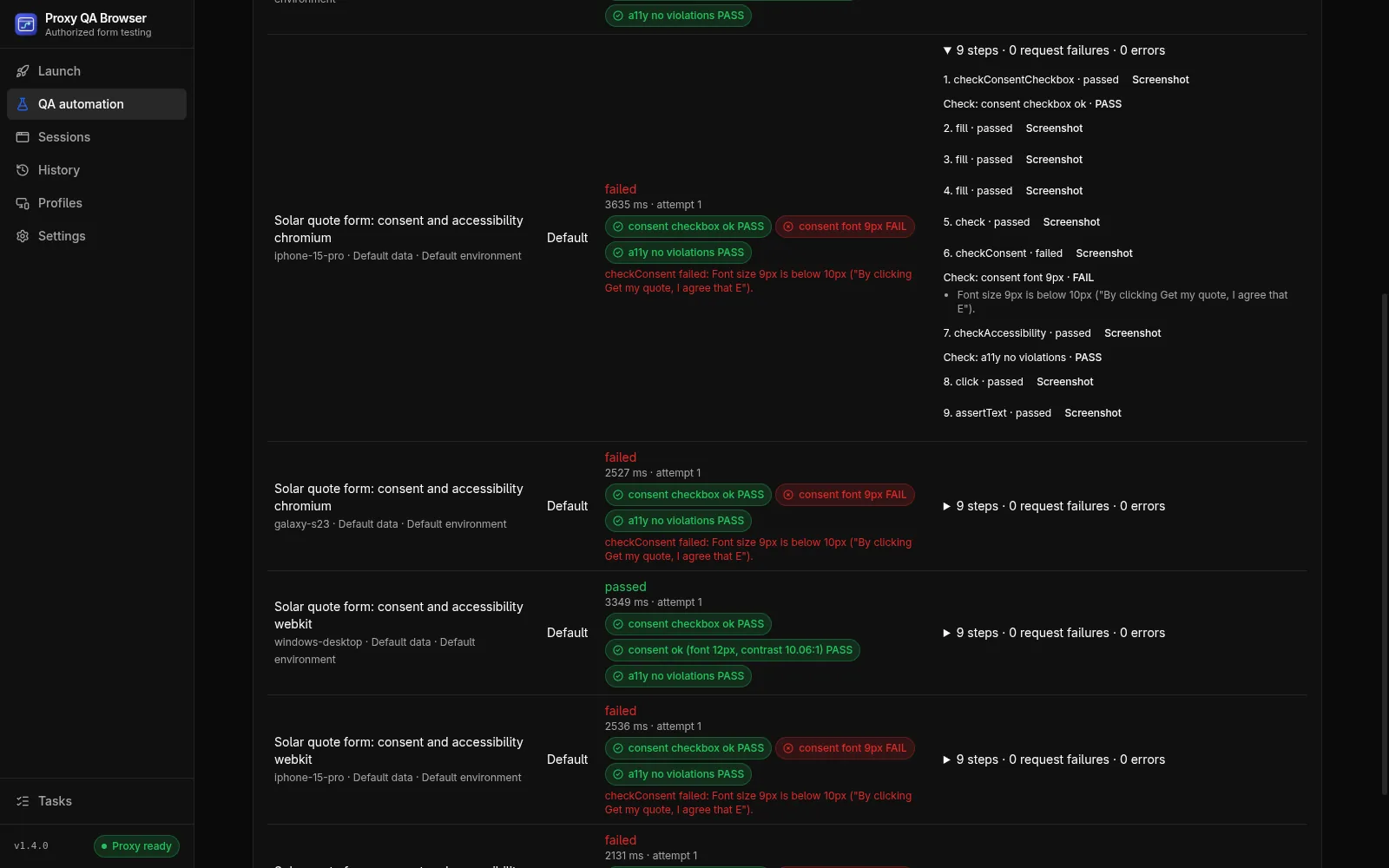
Pre-launch consent QA workflow
Run this before a lead form goes live, and after every change to its disclosure, layout or vendor scripts.
- Use staging and synthetic data. Point the scenario at a staging environment (an environment makes the switch explicit) and submit only synthetic test leads that your systems tag as tests.
- Build the scenario. Navigate to the form; add
checkConsentCheckboxbefore any step that ticks the box; addcheckConsentwith the disclosure selector, the wording approved by your compliance team inapprovedText, andnearSelectorset to the submit button; addcheckScriptLoadedfor TrustedForm or Jornaya; addcheckAccessibilityscoped to the form. Turn on Continue if this check fails for each check. - State-specific wording. Put each state's approved disclosure in a dataset variable (
{"disclosure": "…"}) and use{{disclosure}}as the approved text. Each dataset row runs separately and is named in results. - Run the matrix. Choose the devices your traffic uses (a small phone such as iPhone SE, a large Android phone, a tablet, a desktop), the engines, and for location-dependent pages the states the campaign targets. Small screens are where disclosures get covered by sticky buttons or shrink below the minimum size.
- Review and fix. Fix each failing combination, run again, and export the HTML report for the record or JUnit for CI.
Example scenario steps:
[
  { "action": "checkConsentCheckbox", "checkboxSelector": "#tcpa-consent", "continueOnFailure": true },
  {
    "action": "checkConsent",
    "blockSelector": "#tcpa-disclosure",
    "approvedText": "{{disclosure}}",
    "nearSelector": "#submit",
    "minFontPx": 10,
    "minContrastRatio": 4.5,
    "continueOnFailure": true
  },
  { "action": "checkScriptLoaded", "preset": "trustedform", "continueOnFailure": true },
  { "action": "checkAccessibility", "scopeSelector": "form", "failOn": "serious", "continueOnFailure": true },
  { "action": "checkPerformance", "budgets": { "lcpMs": 2500, "cls": 0.1, "tbtMs": 300 } }
]
Note: These checks automate repeatable parts of consent QA. They are not legal advice and do not decide whether a disclosure is sufficient. Approved wording, placement rules and consent requirements come from your counsel.
Common questions
Can automated accessibility checks replace a manual review?
No. axe-core rules find a subset of WCAG issues. Use the check to catch regressions on every run, and keep a manual accessibility review.