First run
The first-run set-up wizard: bundled browsers, optional proxy keys stored in the encrypted vault, the Manage keys window and a tour of the main window.
Last updated
On the first start, a four-step wizard prepares the browser engines and, optionally, your proxy keys before the normal app opens.
The setup wizard
Nothing in the wizard contacts a proxy unless you press Test connection. On Windows, the wizard opens directly at Browsers and starts any missing downloads automatically.
| Step | What you see | What you do |
|---|---|---|
| 1. Welcome | What will happen, how the vault key is protected on this machine (Key protection, for example Windows DPAPI (current user) or GNOME Keyring / libsecret), and the Vault file and Key file paths with reveal buttons | Click Get started |
| 2. Browsers | Chromium (Required), Firefox and WebKit with their status. Each missing engine downloads in the background, one after another, and is verified with a headless test launch (no window). A verified engine shows Verified ✓ | Wait for Chromium, then click Continue. Skip for now appears when Chromium is ready, nothing is downloading and Firefox or WebKit is still missing. After a failure, click Retry install |
| 3. Proxy credentials | Proxy provider, then the provider's first product as Required (for DataImpulse, DataImpulse Residential): Proxy host and Port pre-filled with the provider's gateway, Username, Password, and for providers that support it Advanced: sticky session template. Further products are Optional, for example Add DataImpulse Mobile credentials | Click Test connection (one request through the proxy; nothing is saved), then Save encrypted, then Continue. Without a proxy plan, click Skip for now |
| 4. Done ("You're set") | A summary of browsers, proxy credentials and vault health, plus anything still pending | Click Open launcher |
Platform differences:
- The Linux AppImage ships its browsers. The Welcome step says "Chromium, Firefox and WebKit ship inside this build" and the Browsers step is skipped.
- The Windows EXE keeps completed downloads in
%APPDATA%\proxy-qa-browser\data\browsers, so they are reused after you close or move the EXE. - The wizard never installs vendor browsers such as Chrome or Opera. Do that later from Settings → Browsers. See Browsers.
Until you click Open launcher, each start reopens the wizard at the first step that still needs attention: Browsers while engines are still missing (Windows and macOS), Proxy credentials while no product has keys, otherwise Done. After that the app always opens on Launch.
Proxy keys
You can skip proxy keys entirely. Direct launches, which use this computer's own connection, need no keys. Add keys at any time with Manage keys on the Launch page, or under Settings → Advanced → Proxy keys → Manage keys….
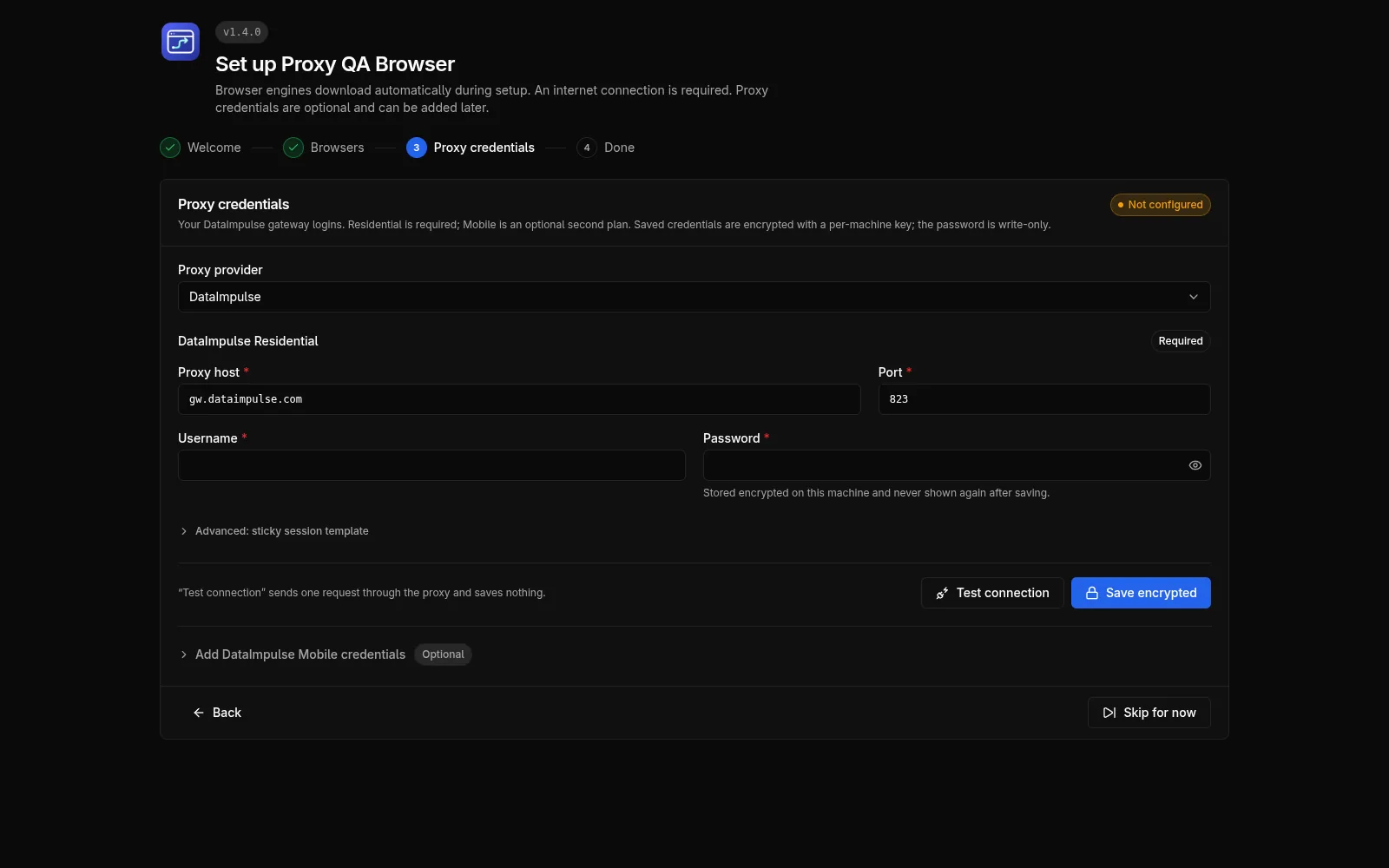
Each provider product (plan) has its own login. For DataImpulse, Residential and Mobile are separate plans with separate logins on the same gateway; a Residential login is never used for the Mobile pool. Each person needs their own plan with the provider.
Credentials are encrypted on this computer with AES-256-GCM and the password is write-only: it is never shown again after saving. See Security and privacy.
Note: Use only a proxy plan you are entitled to use, and only on sites you own or are contracted to test. See Responsible use.
The Manage keys window
After setup, keys are edited in a separate, temporary window titled Manage proxy keys.
- Choose the Provider. A link next to it opens the provider's parameter documentation.
- Pick the product tab, for example Residential or Mobile. Each tab shows its status (Configured or Not set up), the masked user (for example
ab****yz), the source and the last test. - Fill in the form. For a product already in the vault, empty fields keep the stored value (placeholders read "unchanged: ab**yz" or "unchanged"), so you can change the password without retyping the username.
- Click Test connection to test the merged result without saving, then Save encrypted.
Remove keys (with confirmation) deletes a product's encrypted entry.
The window protects what you type:
- It is modal on Windows and Linux, fixed in size and has no taskbar entry.
- On Windows it blocks screenshots and screen recording (no effect on Linux).
- It closes itself after 5 minutes without input (the footer counts down in the last minute) and after 15 minutes regardless. Close closes it at once.
- Typed values live only in that window and are gone when it closes. Only one such window can be open.
The main window
After setup the sidebar shows Launch, QA automation, Sessions, History, Profiles and Settings. Below them:
- Tasks shows background installs (a spinner and count while they run, a check when all finished, a red dot after a failure). See Browsers.
- The app version. Click it to open Settings → App & updates. An Update badge appears next to it when a newer signed release exists. See Updates.
- A status pill: Proxy ready when at least one product has keys, Proxy not set otherwise. Click it to open the proxy keys.
Next steps
- Launch your first browser.
- Install more browsers in Browsers.
- Learn how targeting works in Proxy providers.