Updates
How signed online and USB updates are verified with Ed25519 and SHA-256, the computer copy, the startup update check and updating on macOS.
Last updated
Proxy QA Browser updates itself on Windows and Linux, online or from USB, after verifying the publisher's signature; macOS updates come from the download page.
How updates are verified
Every update is described by a signed manifest. Before anything is installed, the app checks:
- the Ed25519 publisher signature against the public key built into the app,
- the platform and version (a release must be newer than the running version; downgrades are refused),
- the exact file size and SHA-256 of the downloaded file.
Your profiles, settings, vault and downloaded browsers live outside the program file and are kept across updates.
Note: The update signature authenticates the release. It is separate from Windows Authenticode code signing, so an unsigned EXE can still show a SmartScreen prompt. See Install.
The computer copy
On Windows and Linux you can run the downloaded file directly, but a stable computer copy starts faster and keeps its shortcuts valid across updates.
- Open the downloaded EXE or AppImage and finish browser preparation if this is the first opening.
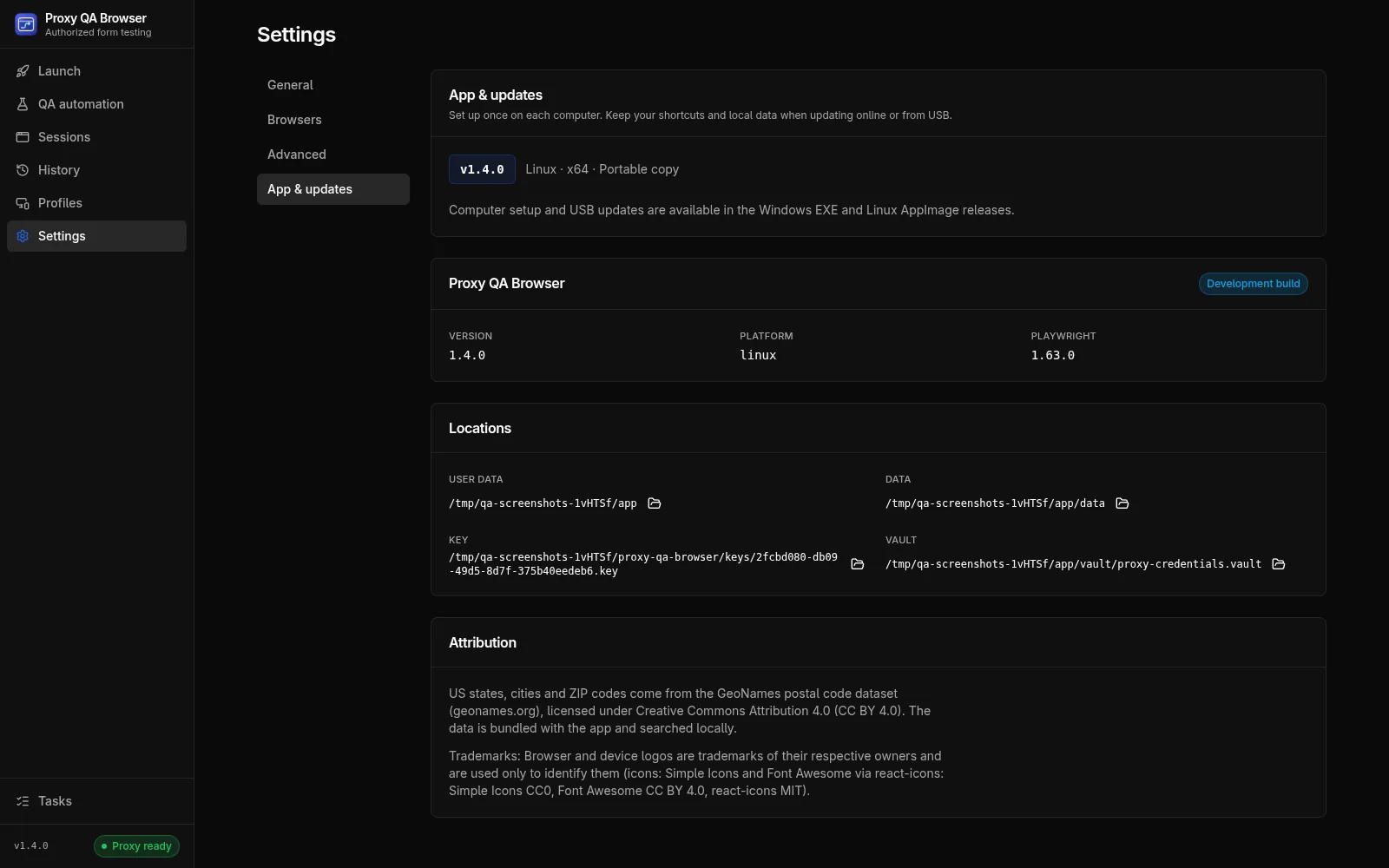
- Open Settings → App & updates, or click the version in the sidebar.
- Choose Desktop and Start menu (Windows) or applications menu (Linux) shortcuts, then click Set up on this computer.
- Click Use computer copy and use that shortcut from now on.
| Platform | Computer copy location |
|---|---|
| Windows | %LOCALAPPDATA%\ProxyQABrowser\Application\Proxy-QA-Browser.exe |
| Linux | ${XDG_DATA_HOME:-~/.local/share}/proxy-qa-browser/Application |
Setup needs no administrator access, and data and vault locations stay unchanged.
On Windows, Pin to Start or taskbar selects the Start menu shortcut in File Explorer; right-click it to pin it, or right-click the running app's taskbar icon and choose Pin to taskbar. Windows requires you to make the final pin yourself. On Linux, favorites and launcher trust prompts depend on your desktop environment.
If the app was run straight from a downloaded file and then updates, the updated version sets up the computer copy with shortcuts, so the next launch opens the new version. If you later open an older downloaded file while a newer computer copy exists, the app offers to open the newer version instead. Opening a newer file directly also works; click Update computer copy afterwards.
Online updates
In Settings → App & updates, click Check for updates. When a newer release exists, click Download v… and restart. The app downloads and verifies the file, closes its browser sessions, restarts into the new version, and the new version finishes the update. An existing computer copy is upgraded at the same path, so shortcuts and pins stay valid.
Startup update check
With Settings → General → Check for updates on startup on (the default), the app checks the signed feed once after the window opens, at most once every 24 hours.
- It only verifies the feed; nothing is downloaded until you click Download v… and restart.
- A newer release shows an Update badge next to the version in the sidebar.
- Failed checks, for example while offline, are written to the log only.
- Builds without a feed (development builds) skip the check. Turn the setting off to check only by hand.
USB updates
For computers without internet access, or to distribute a release yourself, copy these files into one USB folder:
| File | Purpose |
|---|---|
Proxy-QA-Browser-<version>-Windows-x64.exe or Proxy-QA-Browser-<version>-x86_64.AppImage |
The program for that computer |
Proxy-QA-Browser-Update.json |
Signed update manifest (covers both platforms) |
SHA256SUMS-<version>.txt |
Optional, for manual verification |
Then:
- Open Settings → App & updates → Choose USB update.
- Select the JSON file and review the verified version and release notes.
- Click Restart with v….
The app verifies the signature, platform, version, size and SHA-256, copies the update off the USB drive and restarts after closing its browser sessions. Keep the old app until the new one opens successfully. Deleting a downloaded EXE or AppImage never removes local data.
After an update
After the restart, a notice at the top of the window says how it ended:
- "Updated to v…", which you can dismiss with ×.
- "Update to v… did not finish" with the reason, Retry update (runs the final step again without a new download) and Open App & updates. The running copy stays usable, and a failure that is only dismissed is retried on the next start.
macOS
On macOS the app in Applications already is the computer copy, so Set up on this computer, shortcuts, pinning and Choose USB update are not offered.
Settings → App & updates and the startup check verify the signed feed exactly as on other platforms. When a release includes a macOS download for your Mac's architecture, the app shows Download vX.Y.Z, which opens the download page. Replace the app in Applications with the new one; profiles, history and the vault live outside the app bundle and are kept. The app does not replace itself on macOS.
macOS releases are unsigned DMGs for Apple silicon and Intel; a newly downloaded copy needs Open Anyway once, see Install.
Upgrading from older versions
- 1.1.0 to 1.2.0: open v1.2.0 directly once and set up the computer copy. USB updates work from 1.2.0 onward.
- Releases before the 1.4.x fix failed online updates with "The update is outside the managed download directory". Install the fixed release once by downloading it from the website; later updates work from App & updates.
- 1.4.0 changed the app ID. The app rewrites its own Desktop and Start menu shortcuts during the update, but a Windows taskbar pin you made keeps the old ID and opens the app as a separate taskbar button. Unpin it and pin it again once after updating to 1.4.0.
Release notes for each version are shown in App & updates and on the download page.
Publishing updates
How releases are signed and published is covered in Building and releasing.